Importing a Report
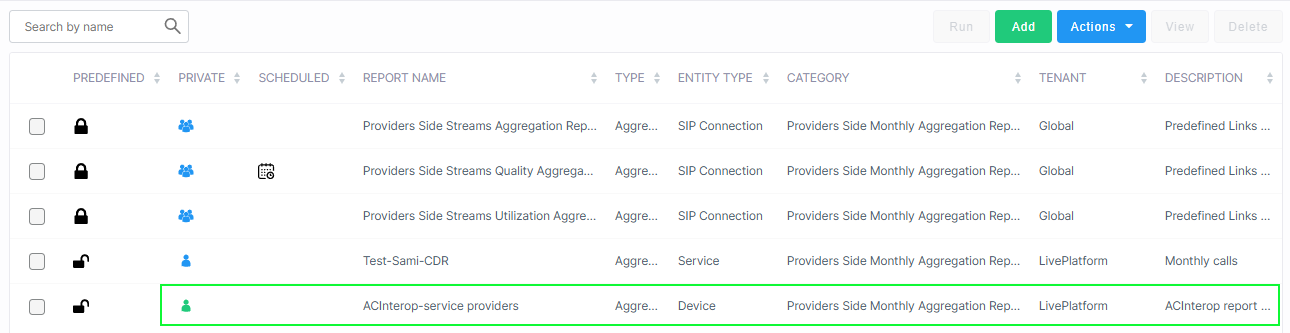
This feature allows you to import the definition of an existing report that has been exported from a different tenant on the same Live Platform instance or from a different Live Platform instance, and then customize it to meet your specific requirements. In other words, this feature can be compared to importing a custom report template. When you import the report, most of it's settings are preserved, including the Category, Report Type, Table Layout, and Graph View. You can then modify as required. The Report Scope is automatically set to the tenant under whom the report is imported. In this process, some of the definitions are reset including the Live Platform topology, and therefore you must reconfigure them as required. In the example shown below, a Provider Side Aggregation Monthly report was exported from the AC Training tenant and then imported to the Live Platform tenant.
| ➢ | To import a report: |
| 1. | Export any report from the desired tenant or instance. |
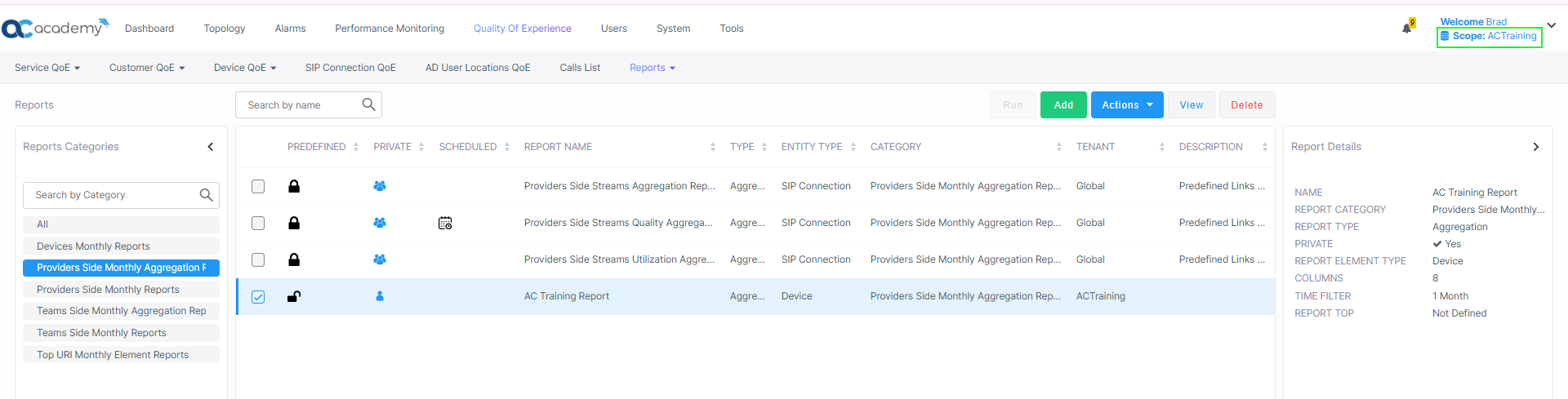

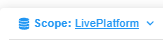
| 2. | Login to Live Platform with the relevant Service Provider tenant scope. |
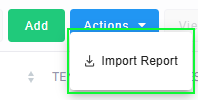
| 3. | From the Actions drop-down menu, select Import Report. |
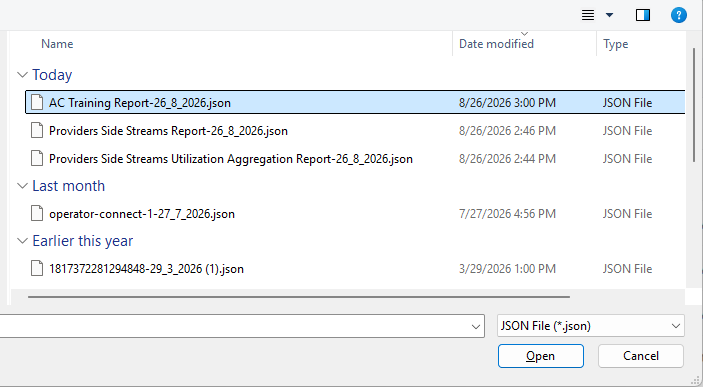
| 4. | Browse to the location of the report and then click Open. |
The Report definitions page is displayed.
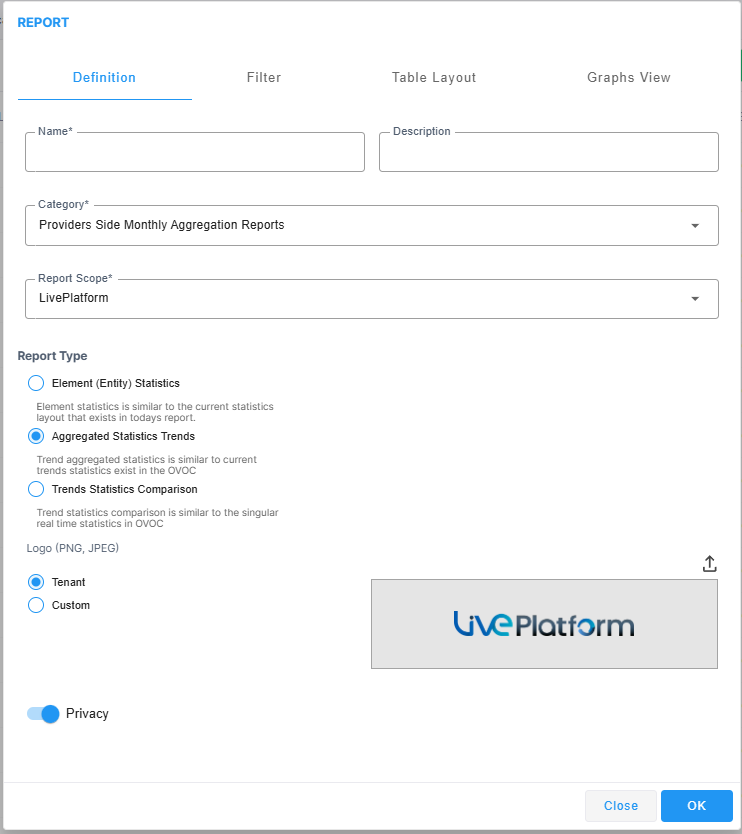
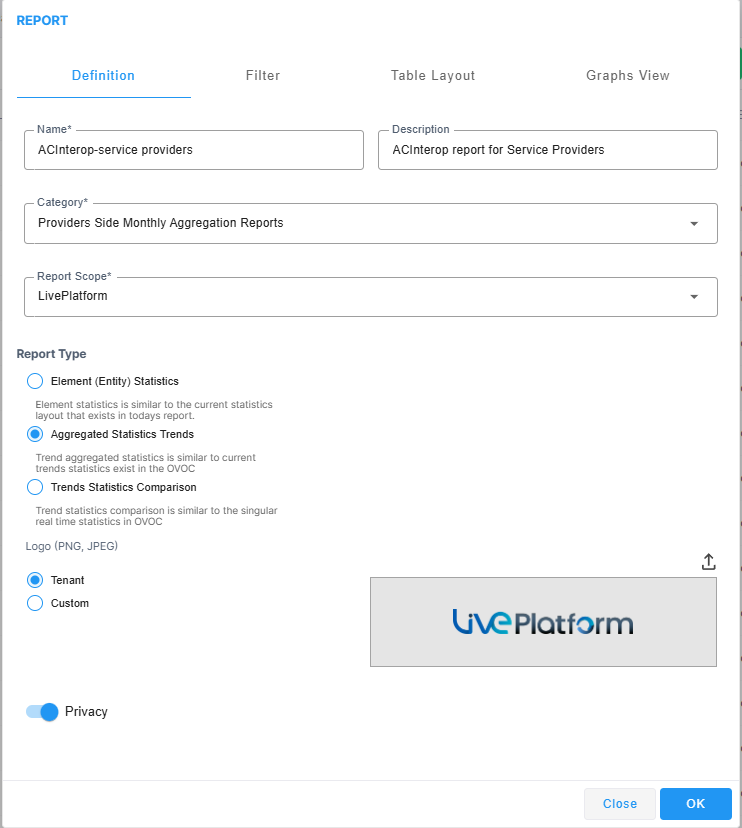
| 5. | Configure parameters as required (see Editing a Report). |
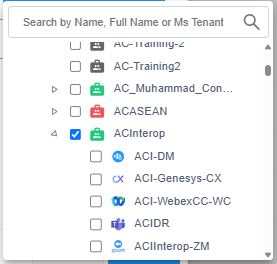
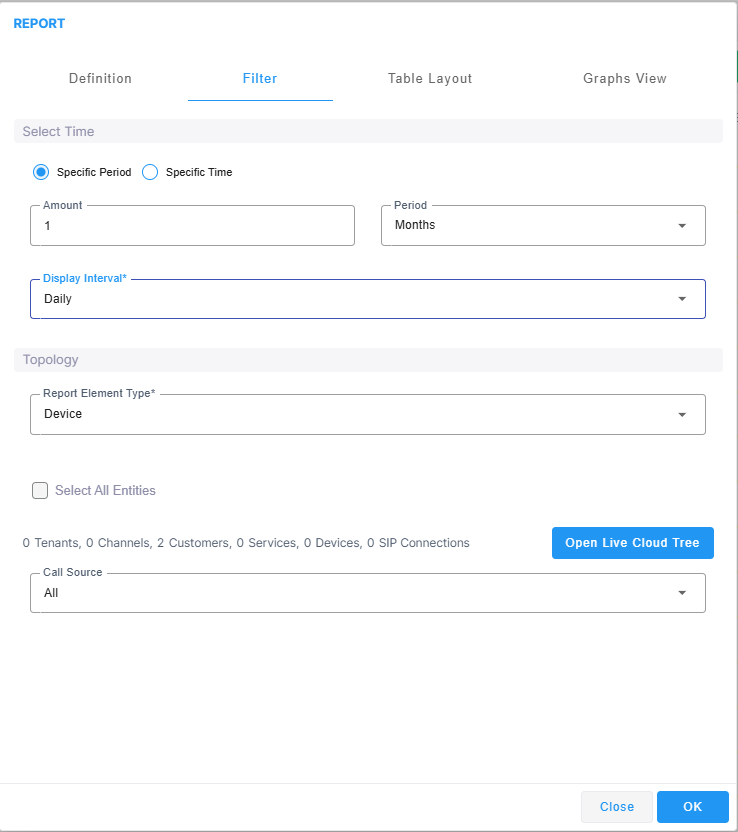
| 6. | Click the Filters tab. Notice that the "Display Interval" and "Topology" have been reset and therefore you must reconfigure them. |
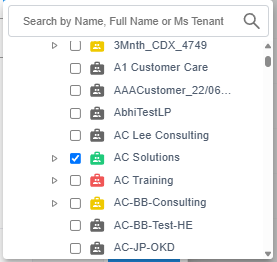
| 7. | Refer to Editing a Report for details regarding all parameters. When you have completed configuration of the new report, click OK to save changes. The new report is displayed. |